
Why Is My Wi-Fi So Slow, and What Can I Fix in 5 Minutes?
You don't need to replace your router. You don't need to call your internet provider. And you definitely don't need to become a network engineer.
Most slow home and small office Wi-Fi problems come down to a handful of small, fixable issues. The kind that quietly build up over time - until one day everything feels sluggish.
If your internet has been dragging, here are three quick changes you can make right now. Each one takes minutes. Together, they can make your Wi-Fi feel like new.
Start Here: What "Slow Wi-Fi" Actually Means
Before you fix anything, it helps to understand what you're experiencing.
"Slow Wi-Fi" usually falls into one of three buckets:
-
Weak signal (you're too far from the router)
-
Congestion (too many devices or interference)
-
Inefficient setup (your router isn't optimized)
The good news: the fixes below target all three.
1) Move Your Router - Yes, It Matters That Much
This is the fastest win, and most people get it wrong.
Routers are often tucked away:
-
Behind TVs
-
Inside cabinets
-
In corners of basements
That's convenient for aesthetics - but terrible for performance.
What to do (takes 2 minutes):
-
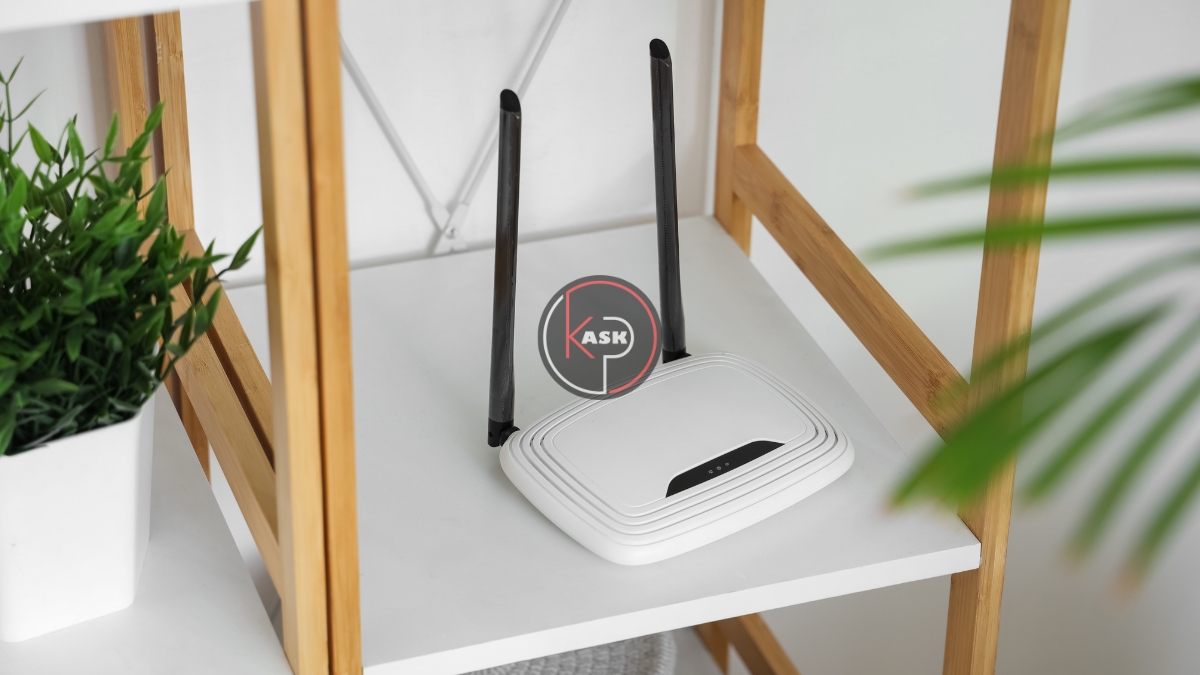
Place your router out in the open
-
Elevate it (a shelf or table - not the floor)
-
Keep it central to your home, not at one far edge
Why this works:
Wi-Fi is just radio waves. Walls, furniture, and even appliances absorb or block that signal. The more obstacles, the weaker your connection.
A small reposition can dramatically improve coverage across your home - especially in rooms that used to struggle.
2) Switch to the Right Wi-Fi Band (Most People Don't)
Modern routers broadcast two main signals:
-
2.4 GHz → Longer range, slower speeds
-
5 GHz → Faster speeds, shorter range
Many devices automatically connect - but not always intelligently.
What to do (takes 1-2 minutes):
-
On your phone or laptop, open Wi-Fi settings
-
Look for two network names (often labeled "5G" or similar)
-
Connect to the 5 GHz network if you're near the router
When to use each:
-
Use 5 GHz in the same room or nearby → faster streaming, smoother calls
-
Use 2.4 GHz farther away → more stable connection through walls
Why this works:
Devices sometimes cling to weaker signals longer than they should. Manually choosing the better band can instantly improve speed and stability.
3) Restart Your Router the Right Way (Not Just a Quick Tap)
You've probably heard "turn it off and on again." But most people don't do it properly.
What to do (takes 3-5 minutes total):
-
Unplug your router (and modem, if separate)
-
Wait at least 60 seconds
-
Plug the modem back in first (if applicable)
-
Wait 1-2 minutes
-
Plug the router back in
Why this works:
Routers are small computers. Over time, they:
-
Accumulate background errors
-
Slow down under memory strain
-
Struggle with device handoffs
A proper restart clears that buildup and resets connections cleanly.
This is one of the simplest ways to restore lost performance.
Bonus: One Thing Worth Checking (If You Have 30 More Seconds)
If your network name still looks like something from your internet provider (e.g., "NETGEAR123"), you may be using default settings.
Log into your router (usually via a web browser at 192.168.0.1) and check:
-
Firmware updates (these improve performance and security)
-
Network name clarity (separate 2.4 and 5 GHz if needed)
You don't need to go deep here - just make sure you're not running outdated defaults.
What If It's Still Slow?
If you've done all three and nothing improves, the issue is likely:
-
Your internet plan speed
-
An aging router (5+ years old)
-
Heavy usage (multiple streams, gaming, work calls at once)
At that point, you're no longer fixing - you're upgrading or optimizing for demand.
But in most homes, these three quick changes solve the problem.
The Wi-Fi Bottom Line
Slow Wi-Fi feels complicated, but it usually isn't.
It's not about buying more - it's about using what you already have more effectively.
Move the router. Choose the right signal. Reset the system.
Five minutes. Real difference.